
Your community experience is moving to Customer Central, our new portal, this summer, with a more intuitive experience. Learn More.
- PowerSchool Community
- :
- Our Community
- :
- Community Forum
- :
- Re: Linking courses in PowerScheduler
- Subscribe to RSS Feed
- Mark Topic as New
- Mark Topic as Read
- Float this Topic for Current User
- Bookmark
- Subscribe
- Mute
- Printer Friendly Page

Linking courses in PowerScheduler

- Mark as New
- Bookmark
- Subscribe
- Mute
- Subscribe to RSS Feed
- Permalink
- Report Inappropriate Content
Linking courses in PowerScheduler
First year using PowerScheduler...
How can I set two courses that need to be taken in sequence to work correctly in PowerScheduler? If a student requests "Beginning Guitar" (which is offered in Semester 1) they must take "History of Rock" in Semester 2. I have tried the relationship option but PowerScheduler keeps ignoring all student requests for these courses. Or I have it misconfigured so badly that it can't schedule them.
Thanks


- Mark as New
- Bookmark
- Subscribe
- Mute
- Subscribe to RSS Feed
- Permalink
- Report Inappropriate Content
If students have requests for the Course and PS is ignoring them completely the first thing I would check is if "Schedule this Course" is checked on the Course Preference page.
Full Disclosure: I do not work for PowerSchool

- Mark as New
- Bookmark
- Subscribe
- Mute
- Subscribe to RSS Feed
- Permalink
- Report Inappropriate Content
Both courses have "Schedule this course" checked.
- Mark as New
- Bookmark
- Subscribe
- Mute
- Subscribe to RSS Feed
- Permalink
- Report Inappropriate Content
Are you doing a Build & Load?
If you are building, you can try the
Is Blocked for Building With > Different Terms
Relationship.
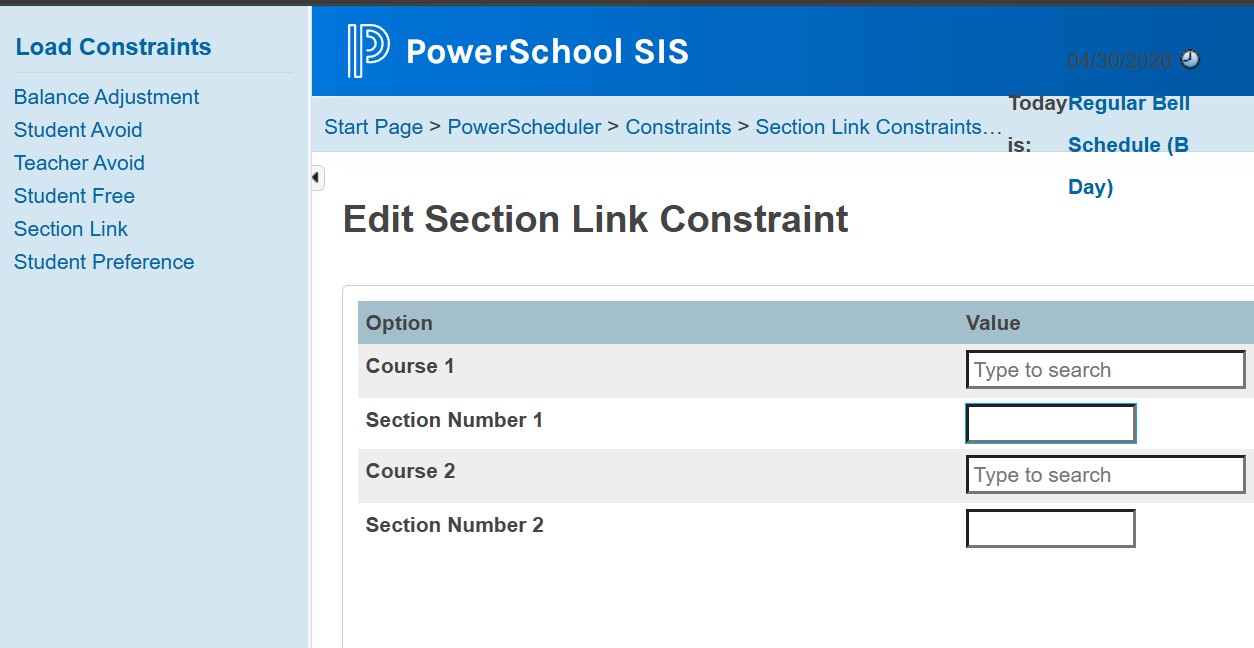
If you are Loading and if possible, Section Links may work.
In both cases, don't forget to Import your Build and/or Load.
Full Disclosure: I do not work for PowerSchool
- Mark as New
- Bookmark
- Subscribe
- Mute
- Subscribe to RSS Feed
- Permalink
- Report Inappropriate Content
Just Load. How do I configure section links?
- Mark as New
- Bookmark
- Subscribe
- Mute
- Subscribe to RSS Feed
- Permalink
- Report Inappropriate Content
- Mark as New
- Bookmark
- Subscribe
- Mute
- Subscribe to RSS Feed
- Permalink
- Report Inappropriate Content
Thanks for the screenshot. I went back to my original load import and I have a handful of students enrolled in the two courses. When I build the section link and import that config, I'm back to zero students enrolled.
- Mark as New
- Bookmark
- Subscribe
- Mute
- Subscribe to RSS Feed
- Permalink
- Report Inappropriate Content
It is extremely difficult to troubleshoot PowerScheduler without access to your instance. If no one is getting into a course some things to look at:
-The Load Priority on the Course
-Is it a single section and the kids are Loading into something else first?
-Can they simply not fit it into their schedule?
Full Disclosure: I do not work for PowerSchool

- Mark as New
- Bookmark
- Subscribe
- Mute
- Subscribe to RSS Feed
- Permalink
- Report Inappropriate Content
Also, make sure the students scheduling preferences are set including "Schedule this Students". Other things to check that may be causing issues:
Are there sections for the course?
Are there course relationships? You can run the PowerScheduler course relationships report.
Are there constraints?
Do the students have a request for both courses?
Run the Resolve Invalid Requests function to look for issues with the linked courses (PowerScheduler > Functions > Resolve Invalid Requests)
Review the Load Results for information (errors/warnings) pertaining to those students or courses.
CM

-
Hands-on training with PowerSchool University in Announcements: What's New on 09-09-2025
-
How do you add co-teachers in PowerScheduler for a build? in Community Forum on 07-13-2022
-
Powerscheduler Gaps in Community Forum on 06-04-2026
-
PowerScheduler: Course Catalog in PowerSchool SIS Adoption Resources on 05-18-2026
